

Types of Connection Issues
Invalid Credentials (Blocking)
Invalid credential errors mean Trackstar can no longer authenticate with the connected system. This is a blocking issue — no data can be synced for any resource until the credentials are updated. Common causes:- Password or API key was rotated or expired
- Account was deactivated or suspended
- OAuth token was revoked
Missing Permissions (Non-Blocking)
Permission errors mean the credentials are valid, but they don’t have access to all supported resources. This is a non-blocking issue — the connection will continue to sync data for the resources it does have access to. Only the restricted resources are affected. Common causes:- API key has limited scope (e.g. read-only access, no access to returns)
- User role in the connected system doesn’t include all modules
- Certain features are disabled or not part of the customer’s plan
How Issues Appear
In the Dashboard
The Connections page shows the health status of each connection. Click into a connection to see detailed error information, including whether issues are blocking or non-blocking, and which specific resources are affected. A healthy connection with full permissions: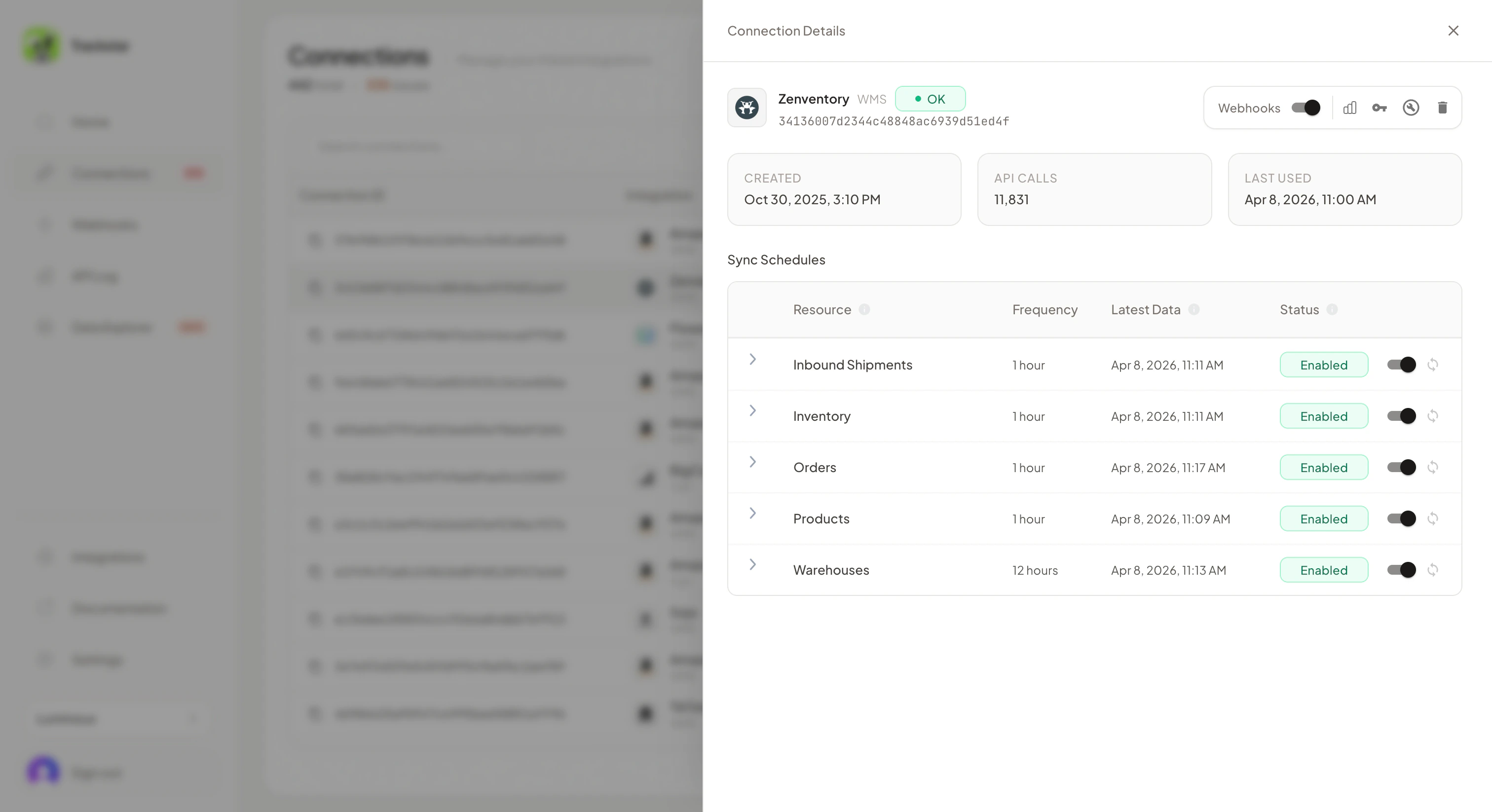
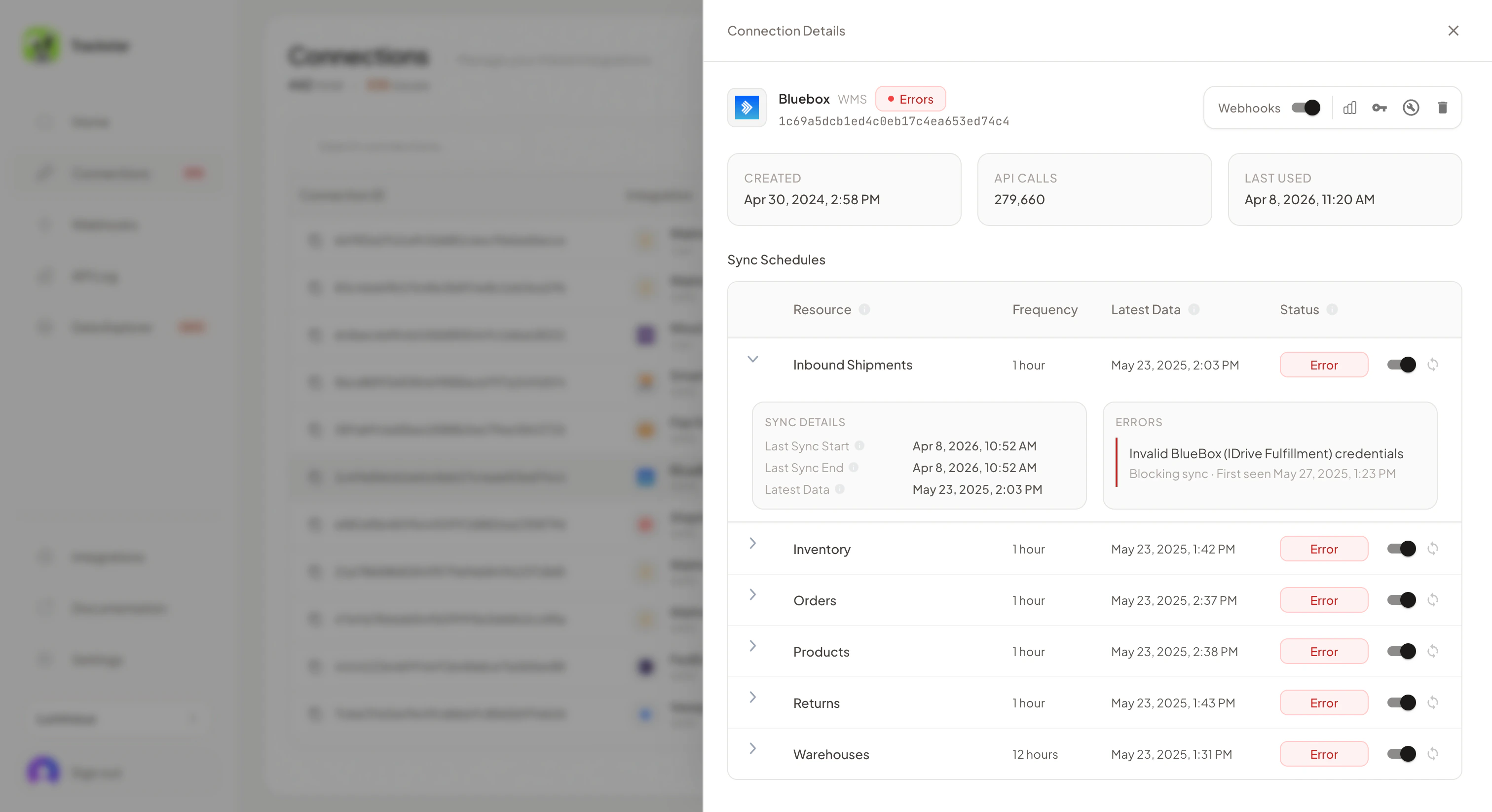
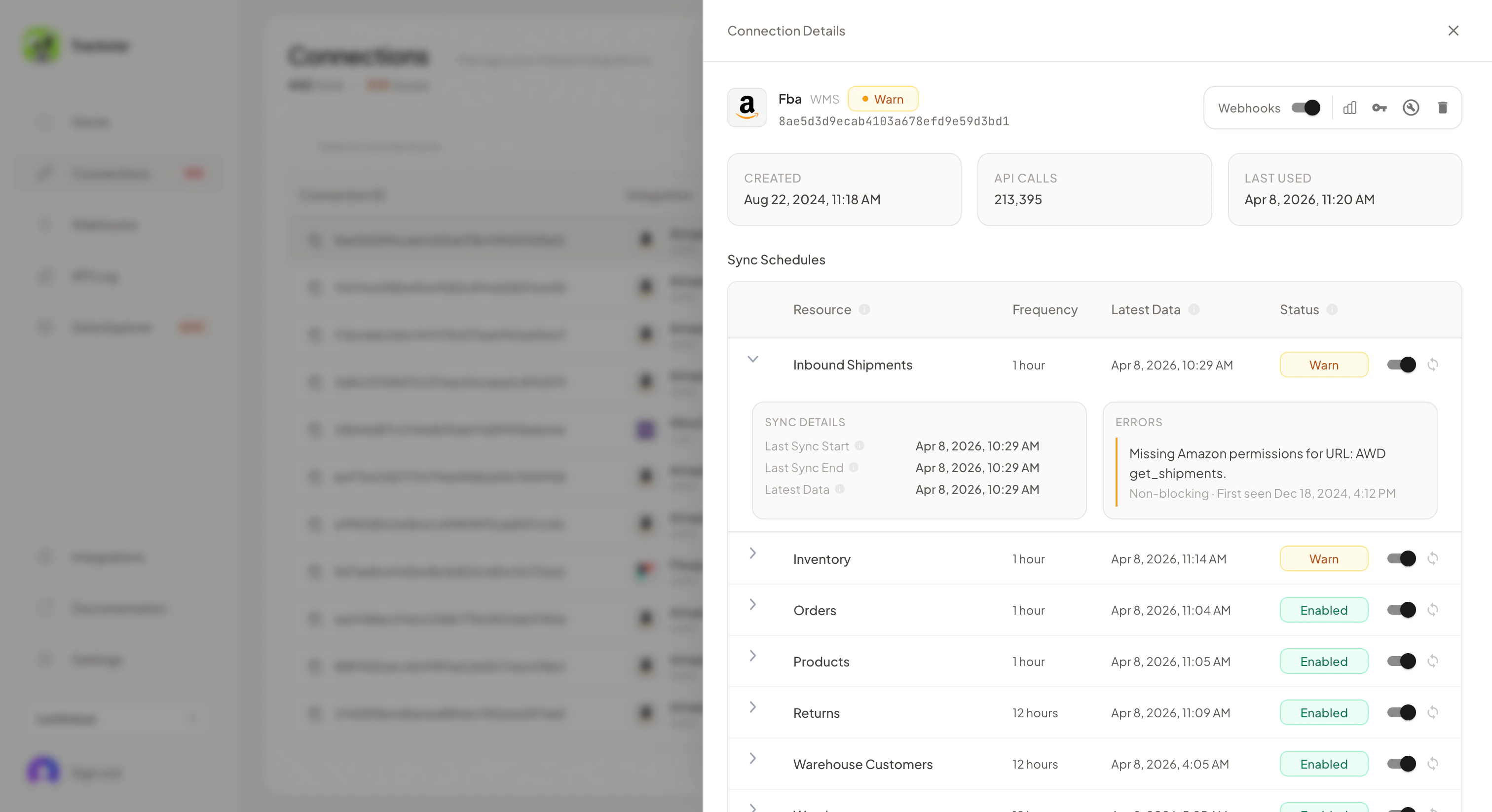
Via Webhooks
connection-error.created— fired when a new error is detected (credential or permission)connection-error.updated— fired when an existing error changesconnection-error.deleted— fired when an error is resolved (e.g. after reinstalling with updated credentials)
Via the API
The GET /connections endpoint returns a populatederrors array when a connection has issues:
resource field indicates which specific resource is affected:
Email Notifications
Trackstar can send email notifications when connection issues are detected. Configure email notification settings in the dashboard. This gives your team visibility into issues without needing to build webhook handling.Reinstalling a Connection
When credentials need to be updated, you can reinstall the connection. There are three ways:- In the Trackstar Dashboard by clicking the “Reinstall Connection” button within the connection row
-
By generating a magic link with the
Reinstall Existing Connectionfield filled in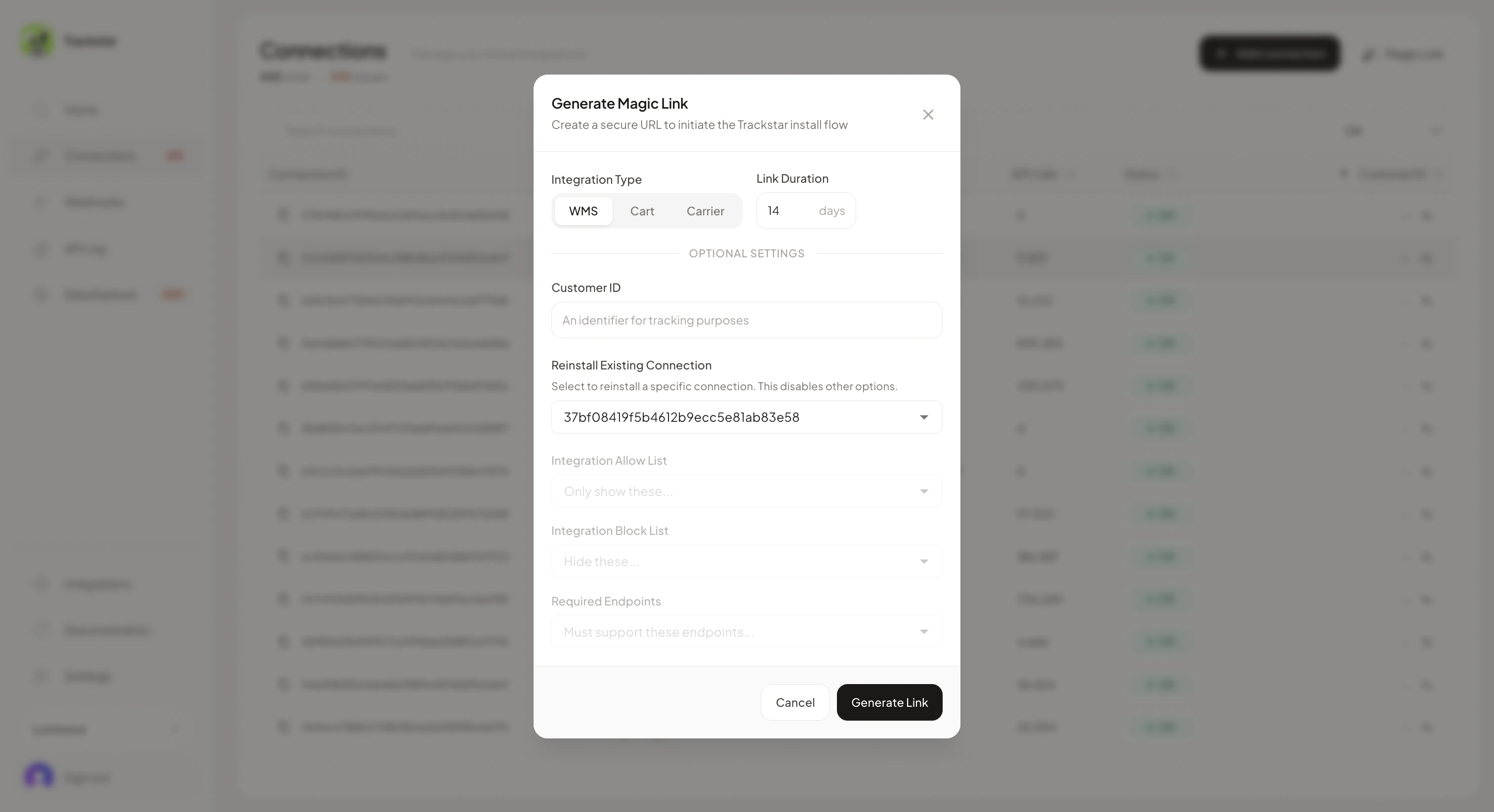
-
Programmatically via the embedded Trackstar Link flow: pass the
connection_idof the broken connection to thePOST /link/tokenendpoint when generating a link token. When your user opens Trackstar Link with this token, it will skip the integration selection screen and go directly to the credential input for that connection. After they enter new credentials, the connection is reinstalled automatically.
Proactively Checking Connection Health
You can callGET /connections/{id} at any time to check the errors array and verify a connection is healthy before relying on the data.