> ## Documentation Index
> Fetch the complete documentation index at: https://docs.trackstarhq.com/llms.txt
> Use this file to discover all available pages before exploring further.
# Webhooks
Use Trackstar webhooks to be notified when certain events occur. The timing of a webhook event related to a resource (e.g. Orders, Inventory, Products, etc.) will coincide with the [sync frequency](https://docs.trackstarhq.com/how-to-guides/syncing-data#default-sync-frequencies) of that resource.
Resource webhooks (e.g. `order.created`, `inventory.updated`) are **not** sent during a connection's initial sync. They are only sent for changes detected after the initial sync completes.
However, the [`connection.historical-sync-completed`](/how-to-guides/webhooks/admin/connection-historical-sync) webhook **is** sent when the initial sync finishes for each resource type. Use this to know when data is available for querying.
For more information on how initial syncs work, see the [Syncing Data](/how-to-guides/syncing-data#initial-sync-behavior) guide.
Webhooks will point to a specific **URL** that you must set up. This URL must accept `POST` requests with the `Content-Type` set to `application/json`, and can be configured within the [Trackstar Dashboard](https://dashboard.trackstarhq.com/webhooks).
## Webhook Message Schema
| Field | Type | Description |
| --------------------- | -------- | ------------------------------------------------------------------------------------------------------------------------------------------------------------------------------------------------------------------------------------------------------------------------------ |
| `connection_id` | `string` | The ID of the connection from which the event occurred. |
| `data` | `object` | The created or updated object. |
| `event_type` | `string` | The type of event that occurred. See above for the list of types. |
| `integration_name` | `string` | The name of the integration from which the event occurred. |
| `previous_attributes` | `object` | *Only present on updated events.* The previous values of the fields that were updated. If the change occurs within a nested field, we will represent that change via a `"."` joined string where integers represent the index of the array, and strings represent object keys. |
You can find each event's full schema in the subsequent pages in this section.
## Sample Webhook Message
```
{
"connection_id": "connection_id",
"data": {
"created_date": "2022-06-01T00:00:00Z",
"expected_arrival_date": "2022-06-09T00:00:00Z",
"id": "id",
"line_items": [
{
"expected_quantity": 1,
"inventory_item_id": "inventory_item_id_1",
"received_quantity": 1,
"sku": "sku1",
},
{
"expected_quantity": 2,
"inventory_item_id": "inventory_item_id_2",
"received_quantity": 2,
"sku": "sku2",
},
],
"purchase_order_number": "PO#",
"status": "received",
"supplier": "supplier",
"updated_date": "2023-06-14T15:36:48Z",
"warehouse_id": "warehouse_id",
},
"event_type": "inbound_shipment.updated",
"integration_name": "integration_name",
"previous_attributes": {
"status": "open",
"line_items.1.received_quantity": 1
},
}
```
Note: In the example above, `status` changed from "open" to "received" and the `received_quantity` of the second line item changed from 1 to 2.
`line_items.1.received_quantity` is referring to `data.line_items[1].received_quantity`
## Searching & Filtering Webhooks
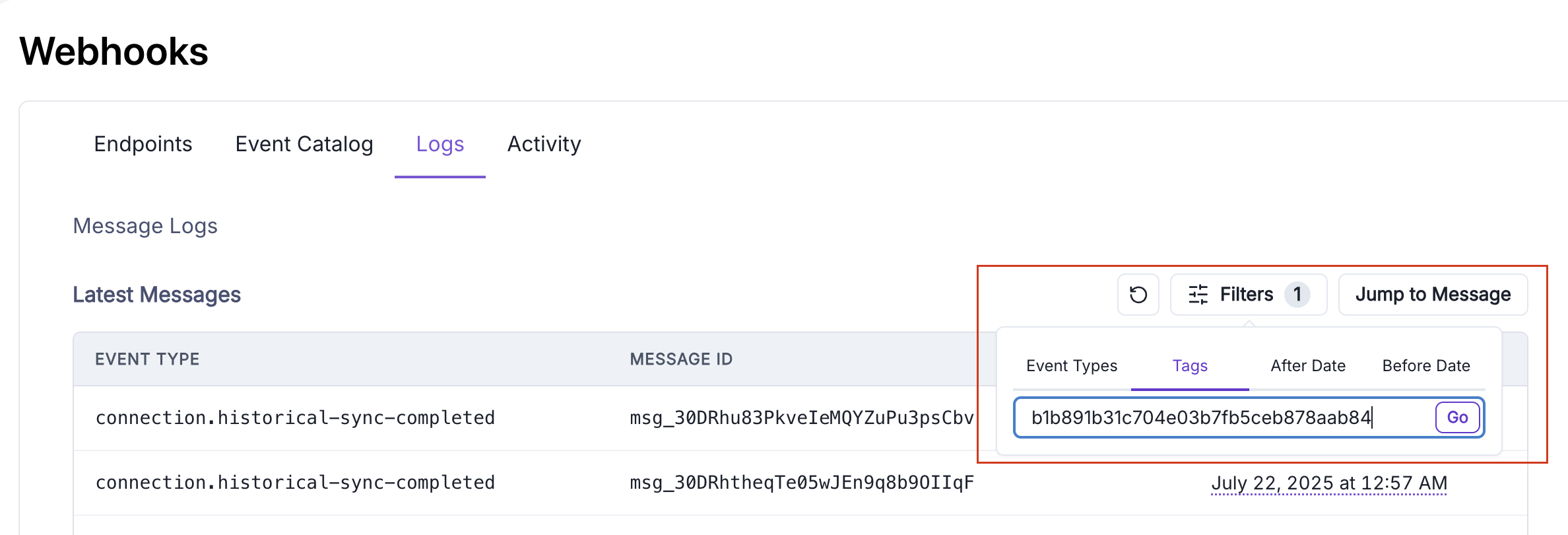
In addition to filtering webhooks by Event Type, you can also filter by both Connection ID and Resource ID (e.g. the ID of an inventory item) within the "Tags" tab:
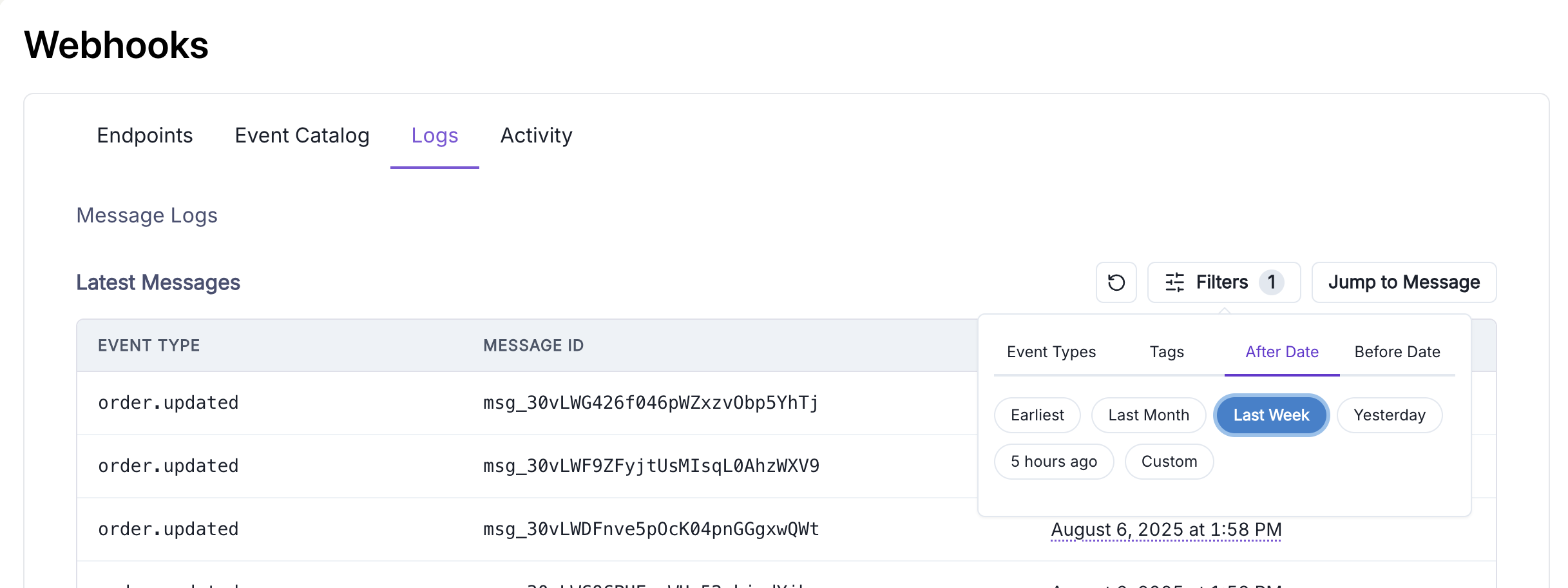
 You also have the ability to filter by dates. For example, the below will return all webhooks that have been sent within the last week:
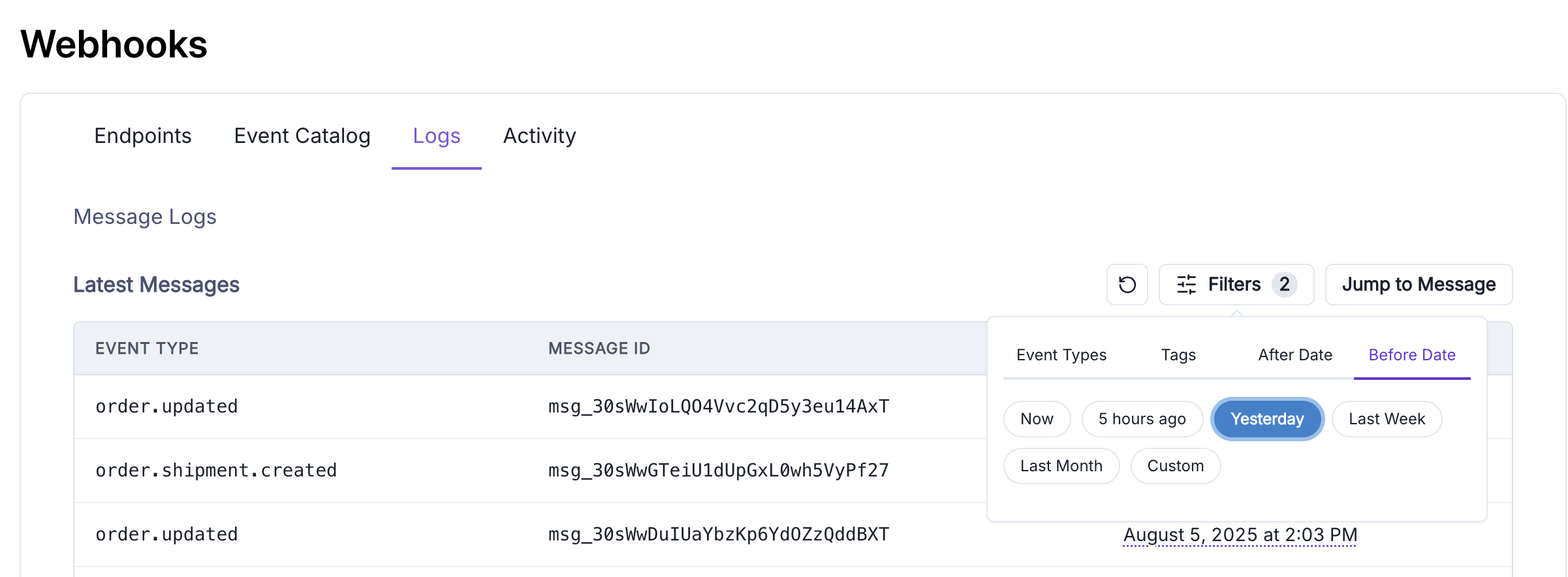
 Which can be combined with a before date filter to further narrow the results:
 **Note:** Filters are persistent when switching tabs in the filtering menu, meaning you have to manually clear or change them when jumping between tabs if you want different results.
## Verifying Webhook Signatures
Trackstar uses SVIX as its webhook provider. Information on how to verify the webhook signature can be found in the [SVIX documentation](https://docs.svix.com/receiving/verifying-payloads/how-manual).
## Webhook Transformations
Webhook transformations allow you to modify webhook properties in real-time using JavaScript before they are sent to your endpoint. You can change the target URL, modify the payload, or even cancel webhook delivery based on custom logic.
### Separating Test and Production Environments
A common use case for transformations is routing webhooks to different endpoints based on the environment. Since Trackstar doesn't currently have separate test and production webhook environments, you can use transformations to route webhooks to different URLs based on attributes in the webhook payload.
For example, you might want to:
* Send webhooks from test connections to a staging/test endpoint
* Send webhooks from production connections to your production endpoint
You can accomplish this by writing a transformation that checks the `connection_id` and routes webhooks accordingly.
### Example: Routing by Connection ID
Here's a practical example that routes webhooks to different URLs based on whether the connection is a test or production connection:
```javascript theme={null}
function handler(webhook) {
// Define your test and production connection IDs
const testConnectionIds = [
"conn_test_abc123",
"conn_test_def456",
"conn_test_ghi789"
];
// Check if this webhook is from a test connection
const isTestConnection = testConnectionIds.includes(webhook.payload.connection_id);
// Route to the appropriate endpoint
if (isTestConnection) {
webhook.url = "https://your-app.com/webhooks/test";
} else {
webhook.url = "https://your-app.com/webhooks/production";
}
return webhook;
}
```
### Example: Routing by Customer ID
If you don't want to keep track of a list of static connection IDs, you can also prefix the customer ID on your test connections with something like `uat` and filter based on that field:
```javascript theme={null}
function handler(webhook) {
// Define your test customer ID prefix
const testCustomerIdPrefix = "uat";
// Check if this webhook is from a test connection
const isTestConnection = webhook.payload.customer_id.startsWith(testCustomerIdPrefix);
// Route to the appropriate endpoint
if (isTestConnection) {
webhook.url = "https://your-app.com/webhooks/test";
} else {
webhook.url = "https://your-app.com/webhooks/production";
}
return webhook;
}
```
### Example: Routing by Integration Name
You can also route based on the integration name if you want to handle certain integrations differently:
```javascript theme={null}
function handler(webhook) {
const sandboxIntegrations = ["Sandbox"];
// Check if this is from a sandbox/test integration
const isSandboxIntegration = sandboxIntegrations.includes(webhook.payload.integration_name);
if (isSandboxIntegration) {
webhook.url = "https://your-app.com/webhooks/test";
} else {
webhook.url = "https://your-app.com/webhooks/production";
}
return webhook;
}
```
### Setting Up Transformations
To configure webhook transformations:
1. Navigate to the [Trackstar Dashboard](https://dashboard.trackstarhq.com/webhooks)
2. Click on your webhook endpoint to view its settings
3. Go to the "Advanced" tab
4. Locate the "Transformations" card
5. Enable transformations and paste your custom JavaScript code
6. Save your changes
For more information on webhook transformations, including additional examples and advanced usage, see the [Svix Transformations documentation](https://docs.svix.com/transformations).
**Note:** Filters are persistent when switching tabs in the filtering menu, meaning you have to manually clear or change them when jumping between tabs if you want different results.
## Verifying Webhook Signatures
Trackstar uses SVIX as its webhook provider. Information on how to verify the webhook signature can be found in the [SVIX documentation](https://docs.svix.com/receiving/verifying-payloads/how-manual).
## Webhook Transformations
Webhook transformations allow you to modify webhook properties in real-time using JavaScript before they are sent to your endpoint. You can change the target URL, modify the payload, or even cancel webhook delivery based on custom logic.
### Separating Test and Production Environments
A common use case for transformations is routing webhooks to different endpoints based on the environment. Since Trackstar doesn't currently have separate test and production webhook environments, you can use transformations to route webhooks to different URLs based on attributes in the webhook payload.
For example, you might want to:
* Send webhooks from test connections to a staging/test endpoint
* Send webhooks from production connections to your production endpoint
You can accomplish this by writing a transformation that checks the `connection_id` and routes webhooks accordingly.
### Example: Routing by Connection ID
Here's a practical example that routes webhooks to different URLs based on whether the connection is a test or production connection:
```javascript theme={null}
function handler(webhook) {
// Define your test and production connection IDs
const testConnectionIds = [
"conn_test_abc123",
"conn_test_def456",
"conn_test_ghi789"
];
// Check if this webhook is from a test connection
const isTestConnection = testConnectionIds.includes(webhook.payload.connection_id);
// Route to the appropriate endpoint
if (isTestConnection) {
webhook.url = "https://your-app.com/webhooks/test";
} else {
webhook.url = "https://your-app.com/webhooks/production";
}
return webhook;
}
```
### Example: Routing by Customer ID
If you don't want to keep track of a list of static connection IDs, you can also prefix the customer ID on your test connections with something like `uat` and filter based on that field:
```javascript theme={null}
function handler(webhook) {
// Define your test customer ID prefix
const testCustomerIdPrefix = "uat";
// Check if this webhook is from a test connection
const isTestConnection = webhook.payload.customer_id.startsWith(testCustomerIdPrefix);
// Route to the appropriate endpoint
if (isTestConnection) {
webhook.url = "https://your-app.com/webhooks/test";
} else {
webhook.url = "https://your-app.com/webhooks/production";
}
return webhook;
}
```
### Example: Routing by Integration Name
You can also route based on the integration name if you want to handle certain integrations differently:
```javascript theme={null}
function handler(webhook) {
const sandboxIntegrations = ["Sandbox"];
// Check if this is from a sandbox/test integration
const isSandboxIntegration = sandboxIntegrations.includes(webhook.payload.integration_name);
if (isSandboxIntegration) {
webhook.url = "https://your-app.com/webhooks/test";
} else {
webhook.url = "https://your-app.com/webhooks/production";
}
return webhook;
}
```
### Setting Up Transformations
To configure webhook transformations:
1. Navigate to the [Trackstar Dashboard](https://dashboard.trackstarhq.com/webhooks)
2. Click on your webhook endpoint to view its settings
3. Go to the "Advanced" tab
4. Locate the "Transformations" card
5. Enable transformations and paste your custom JavaScript code
6. Save your changes
For more information on webhook transformations, including additional examples and advanced usage, see the [Svix Transformations documentation](https://docs.svix.com/transformations).