> ## Documentation Index
> Fetch the complete documentation index at: https://docs.trackstarhq.com/llms.txt
> Use this file to discover all available pages before exploring further.

> ## Agent Instructions
> Trackstar is a unified REST API for WMS, cart, and carrier systems. Base URL: https://production.trackstarhq.com. There is no SDK; call the API with plain HTTP.
> Send x-trackstar-api-key on every request. Endpoints scoped to one connection also need x-trackstar-access-token. Read both from environment variables and never print them.
> Reads return data Trackstar has already synced from the connected system. Writes (POST, PUT, PATCH, DELETE) are forwarded to the connected system immediately.
> A new connection has no data until its initial sync finishes. Wait for the connection.historical-sync-completed webhook, or poll GET /connections/{connection_id} and check historical_sync_completed.
> List endpoints page with page_token and next_token (limit is capped at 1000). Repeat every filter on every page. Filters use field[operator]=value, for example created_date[gte]=2026-01-01T00:00:00Z.
> Write bodies must not contain null or empty strings; omit the field instead. Call GET /integrations/{integration_type}/{integration_name}/write-info first to learn the exact fields an integration accepts.
> To test without real credentials, POST /sandbox/generate-sandbox/{wms|cart|carrier} with the API key returns a sandbox access token. Start at https://docs.trackstarhq.com/how-to-guides/build-with-ai.md and install the skills with: npx skills add https://docs.trackstarhq.com

# Trackstar Link

> Embed the Trackstar Link component or send a Magic Link so customers can connect their systems

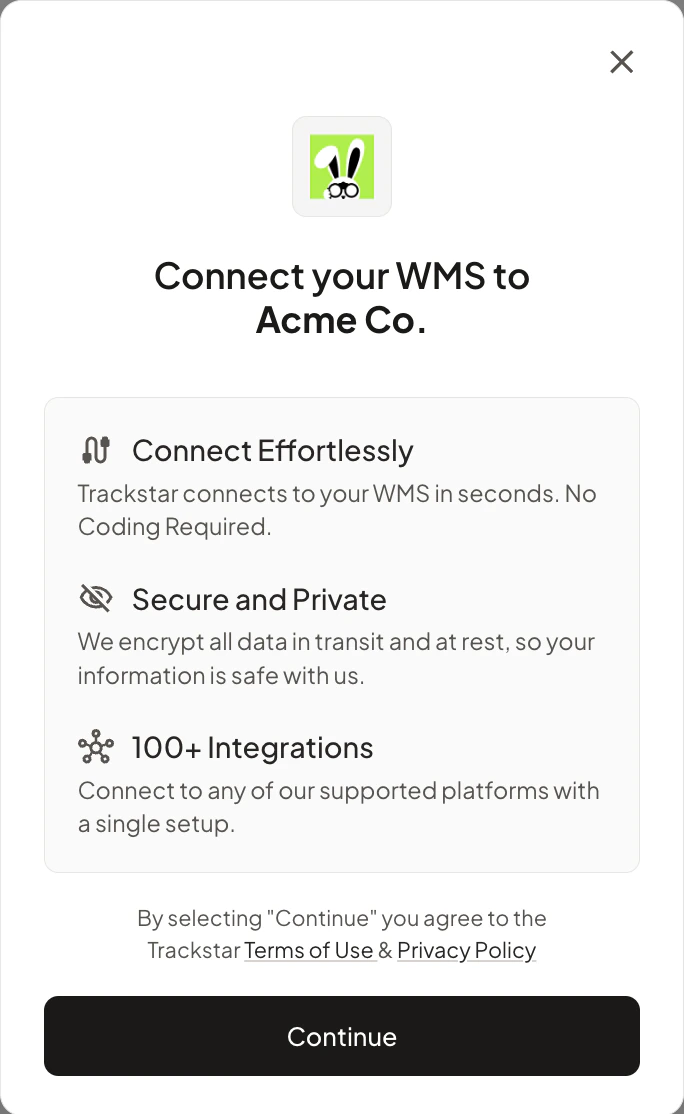
Trackstar provides a component to allow your customers to easily and securely connect to any supported integration.
This component can be embedded into your application, or sent as a "Magic Link" to your customers.

<div style={{display: 'flex', justifyContent: 'center'}}>
  <img src="https://mintcdn.com/trackstar/EH_skZ2djGoccWim/images/link-steps-2.png?fit=max&auto=format&n=EH_skZ2djGoccWim&q=85&s=7c747cd304aafc4dc7127a5d92930682" alt="Trackstar Link" width="250" style={{borderRadius: '12px'}} data-path="images/link-steps-2.png" />
</div>

<Note>
  While connecting, your customer is asked to grant access for each endpoint on the connection. Endpoints your org has [disabled](/how-to-guides/syncing-data#disabled-endpoints) are skipped.
</Note>

## Setting up Trackstar Link

There are two ways to set up Trackstar Link:

1. **Embedding the component**: You can embed the Trackstar Link component into your application.
   This is the recommended way to use Trackstar Link, as it provides a seamless experience for your customers.

2. **Sending a Magic Link**: You can send a Magic Link to your customers.
   This is useful if you don't have a web application, or if you want to provide a quick way for your customers to connect an integration.

### Embedding the Component

We have published an <a href="https://www.npmjs.com/package/@trackstar/react-trackstar-link" target="_blank">NPM package</a> to make it easy to embed the Trackstar Link component into your application.

**React**

<CodeGroup>
  ```bash Yarn theme={null}
    yarn add @trackstar/react-trackstar-link
  ```

  ```bash NPM theme={null}
    npm install @trackstar/react-trackstar-link
  ```
</CodeGroup>

**Angular**

<CodeGroup>
  ```bash Yarn theme={null}
    yarn add @trackstar/angular-trackstar-link
  ```

  ```bash NPM theme={null}
    npm install @trackstar/angular-trackstar-link
  ```
</CodeGroup>

**Vanilla JS**

<CodeBlock>
  See example below
</CodeBlock>

Once you have installed the package, you can use the `TrackstarLink` component in your application.
If you are using vanilla Javascript, you can still use the Trackstar Link component by loading the script in your HTML file:

<CodeGroup>
  ```jsx React theme={null}
  import { TrackstarConnectButton } from '@trackstar/react-trackstar-link';

  function App() {

    const someCustomerId = "12345";
    return (
      <TrackstarConnectButton
        getLinkToken={async () => {
          // See step 2.1 in How To Guides -> Getting Started
          const response = await fetch('https://my-company.backend.com/get-link-token',
            {
              method: 'POST',
            }
          );
          const { linkToken } = await response.json();
          return linkToken;
        }}
        onSuccess={async (authCode, integrationName) =>
          // See step 2.2 in How To Guides -> Getting Started
          await fetch('https://my-company.backend.com/store-token',
            {
              method: 'POST',
              body: JSON.stringify({
                customer_id: someCustomerId,
                auth_code: authCode,
                integration_name: integrationName,
              }),
            }
          )
        }
        onClose={() => console.log('closed')}
        onLoad={() => console.log('loaded')}
      >
        Connect Integration
      </TrackstarConnectButton>
    );
  }
  ```

  ```javascript Vanilla JS theme={null}
  <html>
    <script>
      document.addEventListener('DOMContentLoaded', function() {
        const app = {
          // define app.config
          config: {
              getLinkToken: async () => {
                // See step 2.1 in How To Guides -> Getting Started
                const response = await fetch('https://my-company.backend.com/get-link-token',
                  {
                    method: 'POST',
                  }
                );
                const { linkToken } = await response.json();
                return linkToken;
              },
              onSuccess: async (authCode, integrationName) => {
                // See step 2.2 in How To Guides -> Getting Started
                await fetch('https://my-company.backend.com/store-token',
                  {
                    method: 'POST',
                    body: JSON.stringify({
                      customer_id: someCustomerId,
                      auth_code: authCode,
                      integration_name: integrationName,
                    }),
                  }
                )
              },
              onLoad: () => {
                  console.log("loaded");
              },
              onClose: () => {
                  console.log("closed");
              },
              // Optional props
              // integrationAllowList: ["shipbob", "ongoing"],
              // integrationBlockList: ["deposco"],
              // integrationsWithEndpoints: ["get_returns", "create_return"],
          },
          
          // add external script and resolve once loaded
          loadScript(src) {
              return new Promise((resolve, reject) => {
                  const script = document.createElement("script");
                  script.src = src;
                  script.onload = () => resolve();
                  script.onerror = (err) => reject(err);
                  document.head.appendChild(script);
              });
          },

          // load Trackstar script and initialize
          loadingOnInit() {
              this.loadScript("https://link.trackstarhq.com/main.js")
                  .then(() => {
                      console.log("Script loaded!");
                      setTimeout(() => {
                          if (window.Trackstar) {
                              window.Trackstar.init({
                                  ...this.config,
                                  onLoad: () => {
                                      this.config.onLoad &&
                                          this.config.onLoad();
                                  },
                                  onClose: () =>
                                      this.config.onClose &&
                                      this.config.onClose(),
                                  getLinkToken: () =>
                                      this.config.getLinkToken &&
                                      this.config.getLinkToken(),
                              });
                          }
                      }, 1);
                  })
                  .catch((err) => {
                      console.error("Error loading script", err);
                  });
          },

          // open Trackstar modal
          open() {
              if (this.error) {
                  console.log(this.error);
                  return;
              }
              if (!window.Trackstar) {
                  console.error("Trackstar is not initialized");
                  return;
              }
              if (!window.Trackstar.state?.isLoaded) {
                  console.error(
                      "Trackstar has not been loaded, did you call Trackstar.init()?",
                  );
                  return;
              }
              // Open modal
              window.Trackstar.open();
          },
        };

      // Event listener for the button
      document
          .getElementById("trackstarButton")
          .addEventListener("click", function () {
              app.open();
          });

      // Initialize Trackstar on page
      app.loadingOnInit();
      });
    </script>
    <body>
        <div>
            <button id="trackstarButton">Connect Integration</button>
        </div>
    <body>
  </html>

  ```
</CodeGroup>

#### Multiple Trackstar Buttons

Instead of using a single `TrackstarConnectButton` that opens a modal with a list of integrations, you can use multiple `TrackstarConnectButton` components to connect to specific integrations directly.

1. Set the `integrationAllowList` prop to an array of a single integration ID. This will bypass the integration selection screen.
2. Set the `buttonId` prop to a unique ID. This is required if you have multiple Trackstar Connect buttons on the same page.

For example, the following code will create three buttons that connect to Shiphero, Shipbob, and Deposco respectively:

```jsx theme={null}
import { TrackstarConnectButton } from '@trackstar/react-trackstar-link';

function App() {

  const someCustomerId
  const integrations = ['shiphero', 'shipbob', 'deposco'];

  return (
    <div>
      {integrations.map((integration) => (
        <TrackstarConnectButton
          //...otherProps
          integrationAllowList={[integration]}
          buttonId={integration}
        >
          Connect to {integration}
        </TrackstarConnectButton>
      ))}
    </div>
  );
}
```

#### Available Props

<ParamField path="getLinkToken" type="function" required>
  A function that returns a link token. See [Getting a Link Token](/how-to-guides/getting-started/#2-1-get-link-token) for more information.
</ParamField>

<ParamField path="onSuccess" type="function" required>
  A function that is called when the customer successfully connects an integration. See [Storing Tokens](/how-to-guides/getting-started/#2-2-store-token) for more information.
</ParamField>

<ParamField path="onClose" type="function">
  A function that is called when the component is closed.
</ParamField>

<ParamField path="onLoad" type="function">
  A function that is called when the component is loaded.
</ParamField>

<ParamField path="sandbox" type="boolean">
  Set to true to include a "Sandbox" option in the list of integrations.
</ParamField>

<ParamField path="integrationType" type="string">
  The type of integration to show in the list. Can be "wms", "cart", or "carrier". (default: "wms")
</ParamField>

<ParamField path="integrationsWithEndpoints" type="array">
  Only show the integrations in the list that have the given endpoints supported.
  e.g. `integrationsWithEndpoints={['get_returns', 'create_return']}`
  will only show the integrations that have the endpoints `get_returns` and `create_return`.
</ParamField>

<ParamField path="integrationAllowList" type="array">
  Only show the integrations in the list that are in the allow list.
  e.g. `integrationAllowList={['wms1', 'wms2']}`
  will only show the integrations that are in the allow list. If only one integration is in the allow list,
  the integration selection screen will be bypassed.

  **Note**: The list of integrations can be found at the [Integrations API Reference](/api-reference/mgmt/integrations).
  Use the `integration_name` field to specify which integrations to show in the list.
</ParamField>

<ParamField path="integrationBlockList" type="array">
  Do not show the integrations in the list that are in the block list.
  e.g. `integrationBlockList={['wms1', 'wms2']}`
  will not show the integrations that are in the block list.

  **Note**: The list of integrations can be found at the [Integrations API Reference](/api-reference/mgmt/integrations).
  Use the `integration_name` field to specify which integrations to block from the list.

  **Note**: `integrationAllowList`, and `integrationBlockList` are mutually exclusive. If both props are given values, all integrations will be displayed.
</ParamField>

<ParamField path="logo" type="string">
  The URL of a custom logo to display in link modal.
</ParamField>

<ParamField path="buttonId" type="string">
  The ID of the button. This is required if you have multiple Trackstar Connect buttons on the same page.
</ParamField>

<ParamField path="style" type="object">
  Custom CSS styles to apply to the button.
</ParamField>

### Sending a Magic Link

Within the [Trackstar Dashboard](https://dashboard.trackstarhq.com/connections), you can send a Magic Link to your customers. Simply press the "Generate Magic Link" button
to open the Magic Link modal. From here, you can configure the Magic Link, generate a url, and send it to your customer.

Once the customer successfully connects an integration, the connection can be found in the [Connections page](https://dashboard.trackstarhq.com/connections) of the Trackstar Dashboard.
Click on the associated row, then press the "Copy" button to retrieve the permanent access token for the connection.

#### Magic Link Configuration

* **Link Duration**: The duration that the Magic Link is valid for. After this time, the Magic Link will expire and the customer will need to request a new one.
* **Customer ID (Optional)**: The ID of the customer that the Magic Link is for. This is useful for associating the connection with a customer in your system.
* **Connection ID (Optional)**: The ID of the connection that the Magic Link is for. Only pass this in when you want to update the credentials of an existing connection.

The remaining options sit under **Advanced** in the modal:

* **Integration Allow List (Optional)**: Only show the integrations that are in the allow list.
* **Integration Block List (Optional)**: Do not show the integrations that are in the block list.
* **Required Endpoints (Optional)**: Only show integrations that have the selected endpoints supported.
* **Disabled Endpoints (Optional)**: These endpoints start turned off on the connection this link installs, on top of your org's [disabled endpoints](/how-to-guides/syncing-data#disabled-endpoints). Sync endpoints only.
* **Enabled Endpoints (Optional)**: Re-enable endpoints your org has disabled, for the connection this link installs. Only shown when your org has endpoints disabled for the integration type.

## Custom Branding

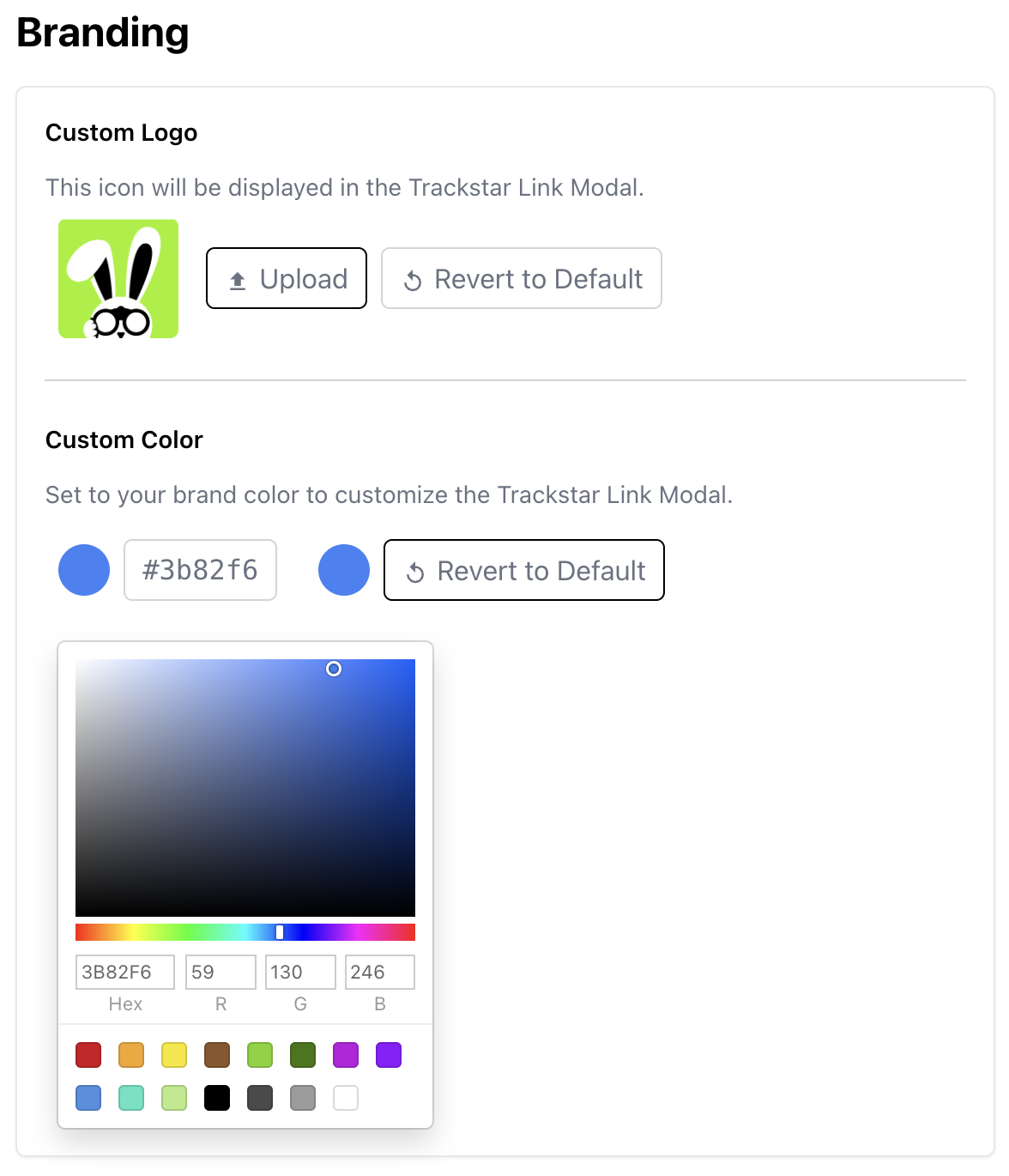
You can customize the appearance of the Trackstar Link within the [Trackstar Dashboard](https://dashboard.trackstarhq.com/settings/branding). Here you can set the following:

* **Custom Logo**: The logo that will be displayed in the Trackstar Link modal.
* **Custom Color**: The color of the Trackstar Link button.
<img src="https://mintcdn.com/trackstar/ronaGfFeKtERpohJ/images/branding.png?fit=max&auto=format&n=ronaGfFeKtERpohJ&q=85&s=68cf7d107d0d8a68211c5beb821ab714" alt="Trackstar Branding" width="400" data-path="images/branding.png" />


This documentation is built and hosted on [Mintlify](https://mintlify.com), a developer documentation platform.