> ## Documentation Index
> Fetch the complete documentation index at: https://docs.trackstarhq.com/llms.txt
> Use this file to discover all available pages before exploring further.
# Sandbox
Trackstar provides sandbox environments for testing and development. Each sandbox contains mocked data so you can get familiar with the API and test your integrations without affecting production data.
There are three sandboxes, one for each API vertical:
* **WMS Sandbox** — orders, inventory, products, returns, and more
* **Cart Sandbox** — orders, products, and warehouses
* **Carrier Sandbox** — invoice line items
## 1. Get an API key
You will need an API key to make API calls. See the [Getting Started](/how-to-guides/getting-started#1-get-an-api-key)
page for how to get one.
## 2. Get your Sandbox Access Token
We automatically generate sandbox data for each vertical when you sign up for Trackstar. Navigate to the [connections page](https://dashboard.trackstarhq.com/connections) and
find the connection rows with Integration Name "Sandbox". Click on the key icon to get the access token for the sandbox you want to use.
## 3. Make API calls
Now you can use the API Key and Access Token to make API calls to the sandbox.
```python WMS Sandbox theme={null}
import requests
url = "https://production.trackstarhq.com/wms/inventory"
headers = {
"x-trackstar-api-key": "YOUR_API_KEY",
"x-trackstar-access-token": "YOUR_WMS_SANDBOX_ACCESS_TOKEN"
}
response = requests.get(url, headers=headers)
response.raise_for_status()
data = response.json()
```
```python Cart Sandbox theme={null}
import requests
url = "https://production.trackstarhq.com/cart/orders"
headers = {
"x-trackstar-api-key": "YOUR_API_KEY",
"x-trackstar-access-token": "YOUR_CART_SANDBOX_ACCESS_TOKEN"
}
response = requests.get(url, headers=headers)
response.raise_for_status()
data = response.json()
```
```python Carrier Sandbox theme={null}
import requests
url = "https://production.trackstarhq.com/carrier/invoice-line-items"
headers = {
"x-trackstar-api-key": "YOUR_API_KEY",
"x-trackstar-access-token": "YOUR_CARRIER_SANDBOX_ACCESS_TOKEN"
}
response = requests.get(url, headers=headers)
response.raise_for_status()
data = response.json()
```
You can read the API reference for all supported operations.
## 4. Sandbox Integration in Trackstar Link
You can enable Sandbox integrations in Trackstar Link by setting the `sandbox` prop in the [Trackstar React Component](/how-to-guides/getting-started#4-implement-react-trackstar-link-fe).
If you go through the auth flow for a Sandbox integration, it will return an auth code that you can [exchange for an access token](/api-reference/mgmt/exchange-auth-code).
This is useful for:
1. Testing the end-to-end Trackstar integration flow without needing real integration credentials.
2. Completing the link exchange generates sandbox data and returns an access token that you can use to make API calls to the sandbox. (Like in step 2 above)
## 5. Data Explorer
The Trackstar Dashboard includes a **Data Explorer** that lets you view and edit data directly in the browser. This is available for both sandbox and production connections.
Navigate to the [Data Explorer](https://dashboard.trackstarhq.com/data-explorer) in the dashboard to:
* Browse all resources (orders, inventory, products, etc.) for any connection
* Edit sandbox data to simulate scenarios like fulfilling an order or updating inventory
* View production data to debug issues or verify sync results
* Switch between WMS, Cart, and Carrier tabs and toggle between Sandbox and Production data
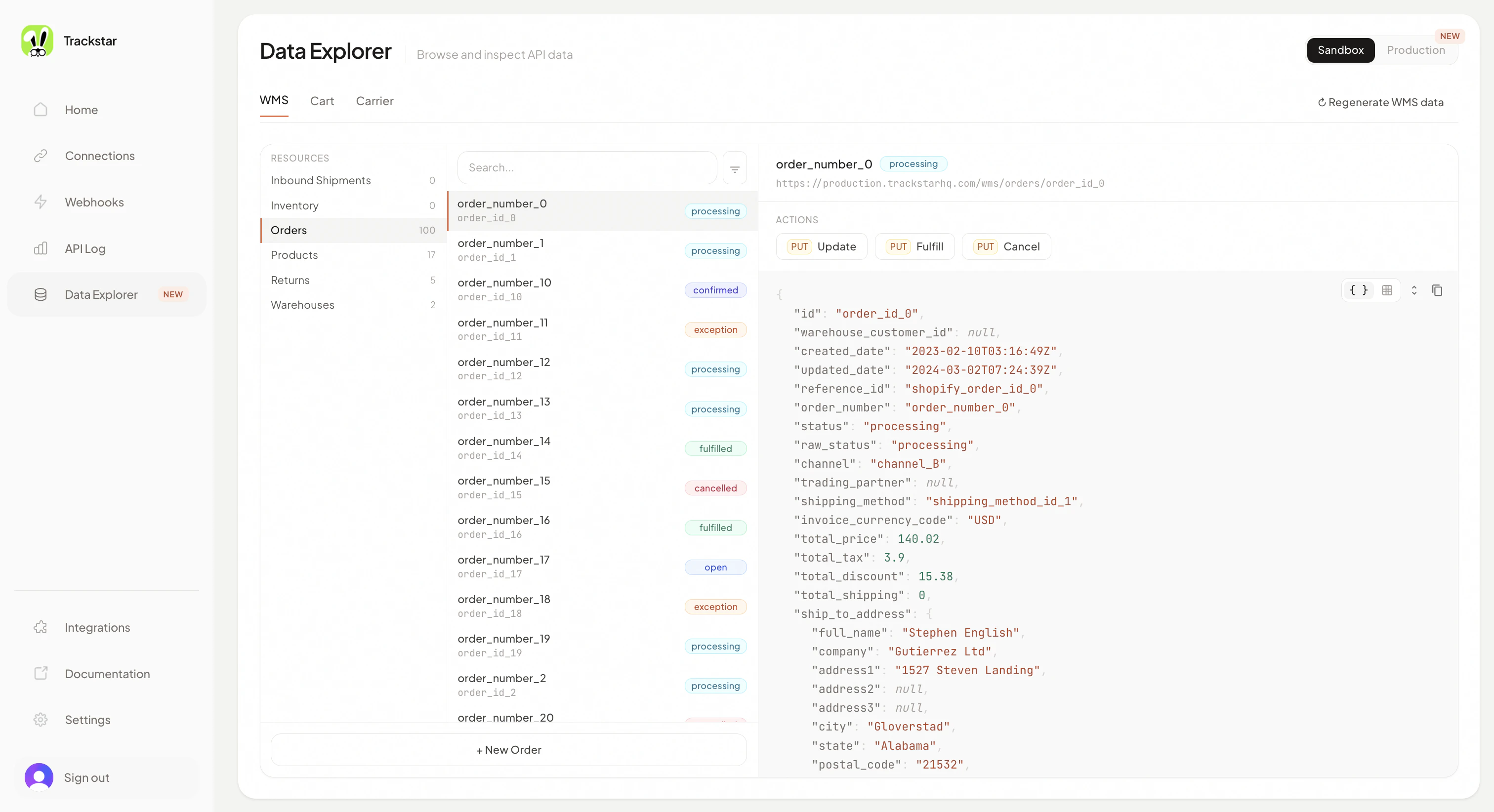 All changes made to sandbox data through the Data Explorer will trigger webhooks, so you can test your full integration flow end-to-end.