> ## Documentation Index
> Fetch the complete documentation index at: https://docs.trackstarhq.com/llms.txt
> Use this file to discover all available pages before exploring further.
# On-Demand Syncs
On-demand syncs let you trigger a backfill of a specific data type over a custom time window, outside of Trackstar's normal sync schedule. They're useful for re-syncing historical data or pulling a longer window of data than the default [30-day initial sync](/how-to-guides/syncing-data#initial-sync-behavior).
For information about Trackstar's normal scheduled syncs, see [Syncing Data](/how-to-guides/syncing-data).
## Supported Functions
Support is rolled out per integration + function. If you'd like support added for an integration or function, [reach out to us](mailto:support@trackstarhq.com) and we'll look into enabling it.
### WMS
**Available function names:**
* `get_products`
* `get_orders`
* `get_inbound_shipments`
* `get_returns`
* `get_bills`
* `get_inventory_ledger`
`get_inventory` is intentionally **not** supported for on-demand syncs. Inventory syncs always fetch a full snapshot from the integration regardless of the time window, so an on-demand sync over a custom range would not change what gets pulled. To refresh inventory, use [`POST /connections/{id}/sync`](/api-reference/mgmt/sync-connection) or wait for the next scheduled sync.
### Carrier
**Available function names:**
* `get_invoice_line_items`
### Cart
On-demand syncs are not currently enabled for any Cart functions.
## Usage
There are three endpoints for managing on-demand syncs:
| Operation | Method | Path |
| ------------------- | ------ | --------------------------------------------------- |
| Create a sync job | `POST` | `/connections/on-demand-syncs` |
| Get sync job status | `GET` | `/connections/on-demand-syncs/{sync_job_id}` |
| Cancel a sync job | `POST` | `/connections/on-demand-syncs/{sync_job_id}/cancel` |
Like all Trackstar API calls, you'll need to authenticate [using your API key and the access token](/how-to-guides/getting-started#5-make-api-calls-be) for the specific connection.
You can manage on-demand syncs either through the API directly or through the [Trackstar dashboard](https://dashboard.trackstarhq.com/connections). Each section below shows both options — pick whichever fits your workflow.
## Creating a Sync Job
### Request Parameters
The following parameters are required when creating a sync job via the API:
ISO 8601 timestamp marking the start of the time window to sync (e.g., `2025-12-01T00:00:00Z`).
ISO 8601 timestamp marking the end of the time window to sync (e.g., `2026-01-01T00:00:00Z`).
The data-fetching function to run. Must be one of the values listed in [Supported Functions](#supported-integrations-and-functions).
If you attempt to start an on-demand sync for an integration + function combination that isn't currently enabled, you will receive a `400` response with the message:
```text theme={null}
On-demand sync is not enabled for {integration_name} {function_name}
```
```python Python theme={null}
import requests
TRACKSTAR_API_KEY = "your_api_key"
ACCESS_TOKEN = "your_access_token"
url = "https://production.trackstarhq.com/connections/on-demand-syncs"
headers = {
"x-trackstar-api-key": TRACKSTAR_API_KEY,
"x-trackstar-access-token": ACCESS_TOKEN,
"Content-Type": "application/json"
}
payload = {
"start_time": "2025-12-01T00:00:00Z",
"end_time": "2026-01-01T00:00:00Z",
"function_name": "get_orders"
}
response = requests.post(url, headers=headers, json=payload)
response.raise_for_status()
sync_job = response.json()
print(sync_job)
```
```javascript Node.js theme={null}
const axios = require('axios');
const TRACKSTAR_API_KEY = 'your_api_key';
const ACCESS_TOKEN = 'your_access_token';
const url = 'https://production.trackstarhq.com/connections/on-demand-syncs';
const headers = {
'x-trackstar-api-key': TRACKSTAR_API_KEY,
'x-trackstar-access-token': ACCESS_TOKEN,
'Content-Type': 'application/json'
};
const payload = {
start_time: '2025-12-01T00:00:00Z',
end_time: '2026-01-01T00:00:00Z',
function_name: 'get_orders'
};
const response = await axios.post(url, payload, { headers });
console.log(response.data);
```
```bash cURL theme={null}
curl --request POST \
--url https://production.trackstarhq.com/connections/on-demand-syncs \
--header 'x-trackstar-api-key: your_api_key' \
--header 'x-trackstar-access-token: your_access_token' \
--header 'Content-Type: application/json' \
--data '{
"start_time": "2025-12-01T00:00:00Z",
"end_time": "2026-01-01T00:00:00Z",
"function_name": "get_orders"
}'
```
1. Open the [Connections page](https://dashboard.trackstarhq.com/connections) and click into the connection you want to sync.
2. In the connection details drawer, switch to the **On-Demand Syncs** tab.
3. Click **Create**.
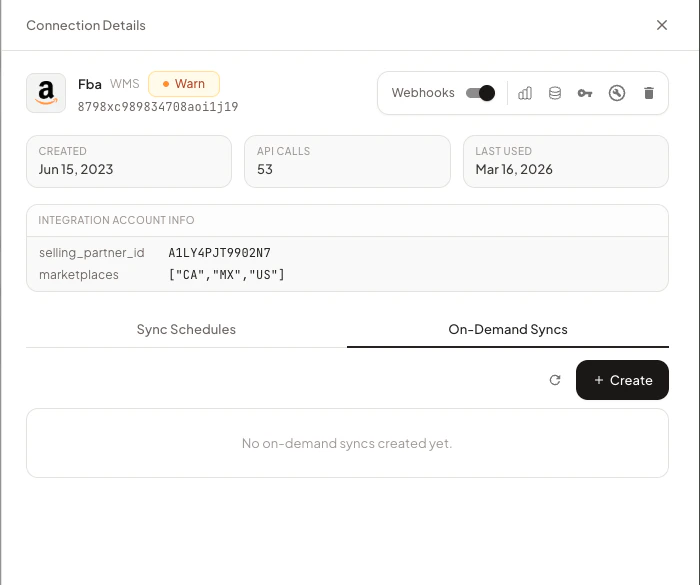 4. In the modal, pick a function, choose a start and end time (interpreted as your local timezone and converted to UTC on submit), and click **Create Sync Job**.
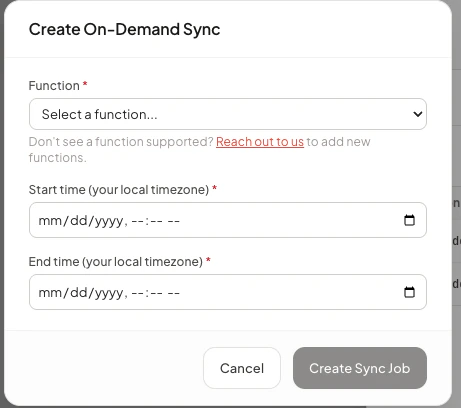 The new job will appear at the top of the list with status `open`.
## Checking Sync Job Status
Use the `sync_job_id` returned from the create call to check progress. The response includes a `status` field with one of the following values:
| Status | Meaning |
| ----------- | --------------------------------------------------------------------------------------------------- |
| `open` | The job has been created and is either queued or actively running. |
| `completed` | The job finished successfully. Synced data is now available via the standard Trackstar API. |
| `cancelled` | The job was cancelled before it could finish (see [Cancelling a Sync Job](#cancelling-a-sync-job)). |
A typical successful lifecycle is `open → completed`. A cancelled job follows `open → cancelled`. Only jobs in the `open` state can be cancelled.
The full response also includes `id`, `connection_id`, `function_name`, `requested_start_time`, `requested_end_time`, and `created_at`.
Use the `sync_job_id` returned from the create call:
```python Python theme={null}
import requests
TRACKSTAR_API_KEY = "your_api_key"
ACCESS_TOKEN = "your_access_token"
SYNC_JOB_ID = "your_sync_job_id"
url = f"https://production.trackstarhq.com/connections/on-demand-syncs/{SYNC_JOB_ID}"
headers = {
"x-trackstar-api-key": TRACKSTAR_API_KEY,
"x-trackstar-access-token": ACCESS_TOKEN
}
response = requests.get(url, headers=headers)
response.raise_for_status()
status = response.json()
print(status)
```
```javascript Node.js theme={null}
const axios = require('axios');
const TRACKSTAR_API_KEY = 'your_api_key';
const ACCESS_TOKEN = 'your_access_token';
const SYNC_JOB_ID = 'your_sync_job_id';
const url = `https://production.trackstarhq.com/connections/on-demand-syncs/${SYNC_JOB_ID}`;
const headers = {
'x-trackstar-api-key': TRACKSTAR_API_KEY,
'x-trackstar-access-token': ACCESS_TOKEN
};
const response = await axios.get(url, { headers });
console.log(response.data);
```
```bash cURL theme={null}
curl --request GET \
--url https://production.trackstarhq.com/connections/on-demand-syncs/your_sync_job_id \
--header 'x-trackstar-api-key: your_api_key' \
--header 'x-trackstar-access-token: your_access_token'
```
The **On-Demand Syncs** tab in the connection details drawer lists all sync jobs for that connection, with their function name, status, and requested window. The list is sorted by most recently created first.
The new job will appear at the top of the list with status `open`.
## Checking Sync Job Status
Use the `sync_job_id` returned from the create call to check progress. The response includes a `status` field with one of the following values:
| Status | Meaning |
| ----------- | --------------------------------------------------------------------------------------------------- |
| `open` | The job has been created and is either queued or actively running. |
| `completed` | The job finished successfully. Synced data is now available via the standard Trackstar API. |
| `cancelled` | The job was cancelled before it could finish (see [Cancelling a Sync Job](#cancelling-a-sync-job)). |
A typical successful lifecycle is `open → completed`. A cancelled job follows `open → cancelled`. Only jobs in the `open` state can be cancelled.
The full response also includes `id`, `connection_id`, `function_name`, `requested_start_time`, `requested_end_time`, and `created_at`.
Use the `sync_job_id` returned from the create call:
```python Python theme={null}
import requests
TRACKSTAR_API_KEY = "your_api_key"
ACCESS_TOKEN = "your_access_token"
SYNC_JOB_ID = "your_sync_job_id"
url = f"https://production.trackstarhq.com/connections/on-demand-syncs/{SYNC_JOB_ID}"
headers = {
"x-trackstar-api-key": TRACKSTAR_API_KEY,
"x-trackstar-access-token": ACCESS_TOKEN
}
response = requests.get(url, headers=headers)
response.raise_for_status()
status = response.json()
print(status)
```
```javascript Node.js theme={null}
const axios = require('axios');
const TRACKSTAR_API_KEY = 'your_api_key';
const ACCESS_TOKEN = 'your_access_token';
const SYNC_JOB_ID = 'your_sync_job_id';
const url = `https://production.trackstarhq.com/connections/on-demand-syncs/${SYNC_JOB_ID}`;
const headers = {
'x-trackstar-api-key': TRACKSTAR_API_KEY,
'x-trackstar-access-token': ACCESS_TOKEN
};
const response = await axios.get(url, { headers });
console.log(response.data);
```
```bash cURL theme={null}
curl --request GET \
--url https://production.trackstarhq.com/connections/on-demand-syncs/your_sync_job_id \
--header 'x-trackstar-api-key: your_api_key' \
--header 'x-trackstar-access-token: your_access_token'
```
The **On-Demand Syncs** tab in the connection details drawer lists all sync jobs for that connection, with their function name, status, and requested window. The list is sorted by most recently created first.
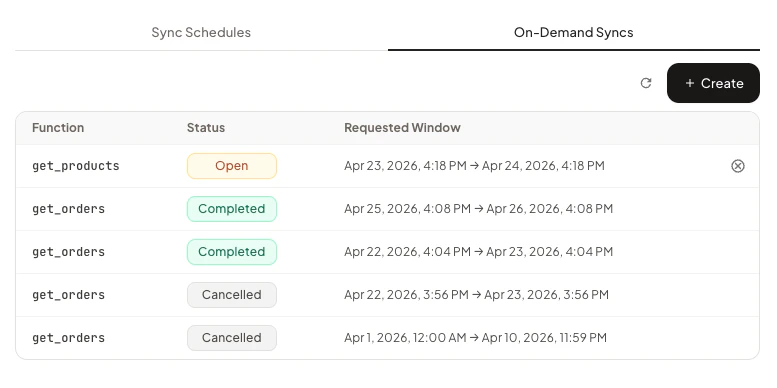 Click the refresh icon to re-fetch the list — the dashboard does not auto-poll.
## Cancelling a Sync Job
If a sync job is no longer needed, you can cancel it before it completes. Only jobs in the `open` state can be cancelled.
```python Python theme={null}
import requests
TRACKSTAR_API_KEY = "your_api_key"
ACCESS_TOKEN = "your_access_token"
SYNC_JOB_ID = "your_sync_job_id"
url = f"https://production.trackstarhq.com/connections/on-demand-syncs/{SYNC_JOB_ID}/cancel"
headers = {
"x-trackstar-api-key": TRACKSTAR_API_KEY,
"x-trackstar-access-token": ACCESS_TOKEN,
"Content-Type": "application/json"
}
response = requests.post(url, headers=headers)
response.raise_for_status()
print(response.json())
```
```javascript Node.js theme={null}
const axios = require('axios');
const TRACKSTAR_API_KEY = 'your_api_key';
const ACCESS_TOKEN = 'your_access_token';
const SYNC_JOB_ID = 'your_sync_job_id';
const url = `https://production.trackstarhq.com/connections/on-demand-syncs/${SYNC_JOB_ID}/cancel`;
const headers = {
'x-trackstar-api-key': TRACKSTAR_API_KEY,
'x-trackstar-access-token': ACCESS_TOKEN,
'Content-Type': 'application/json'
};
const response = await axios.post(url, null, { headers });
console.log(response.data);
```
```bash cURL theme={null}
curl --request POST \
--url https://production.trackstarhq.com/connections/on-demand-syncs/your_sync_job_id/cancel \
--header 'x-trackstar-api-key: your_api_key' \
--header 'x-trackstar-access-token: your_access_token' \
--header 'Content-Type: application/json'
```
In the **On-Demand Syncs** tab, click the cancel icon at the end of any row whose status is `open`. The icon only appears for cancellable rows.
Click the refresh icon to re-fetch the list — the dashboard does not auto-poll.
## Cancelling a Sync Job
If a sync job is no longer needed, you can cancel it before it completes. Only jobs in the `open` state can be cancelled.
```python Python theme={null}
import requests
TRACKSTAR_API_KEY = "your_api_key"
ACCESS_TOKEN = "your_access_token"
SYNC_JOB_ID = "your_sync_job_id"
url = f"https://production.trackstarhq.com/connections/on-demand-syncs/{SYNC_JOB_ID}/cancel"
headers = {
"x-trackstar-api-key": TRACKSTAR_API_KEY,
"x-trackstar-access-token": ACCESS_TOKEN,
"Content-Type": "application/json"
}
response = requests.post(url, headers=headers)
response.raise_for_status()
print(response.json())
```
```javascript Node.js theme={null}
const axios = require('axios');
const TRACKSTAR_API_KEY = 'your_api_key';
const ACCESS_TOKEN = 'your_access_token';
const SYNC_JOB_ID = 'your_sync_job_id';
const url = `https://production.trackstarhq.com/connections/on-demand-syncs/${SYNC_JOB_ID}/cancel`;
const headers = {
'x-trackstar-api-key': TRACKSTAR_API_KEY,
'x-trackstar-access-token': ACCESS_TOKEN,
'Content-Type': 'application/json'
};
const response = await axios.post(url, null, { headers });
console.log(response.data);
```
```bash cURL theme={null}
curl --request POST \
--url https://production.trackstarhq.com/connections/on-demand-syncs/your_sync_job_id/cancel \
--header 'x-trackstar-api-key: your_api_key' \
--header 'x-trackstar-access-token: your_access_token' \
--header 'Content-Type: application/json'
```
In the **On-Demand Syncs** tab, click the cancel icon at the end of any row whose status is `open`. The icon only appears for cancellable rows.
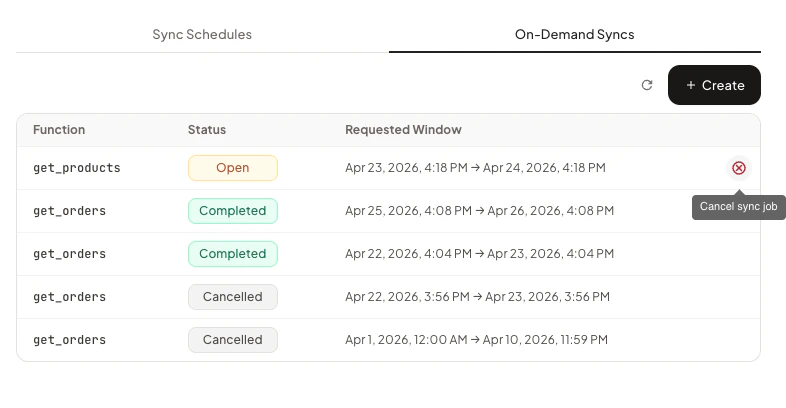 Once cancelled, the job stays in the list with status `cancelled` and the icon disappears.
## Important Notes
* **Asynchronous execution:** Sync jobs run in the background. Poll the status endpoint or rely on Trackstar's existing webhooks (e.g. [`order.created`](/how-to-guides/webhooks/wms/order-created), [`order.updated`](/how-to-guides/webhooks/wms/order-updated)) to know when new data has landed.
* **Precedence over scheduled syncs:** On-demand syncs take precedence over scheduled syncs on the same connection. While a sync job is in the `open` state, the regularly scheduled syncs for that connection will not run, which can cause recent data to fall behind. Once all open sync jobs finish (or are cancelled), scheduled syncs automatically resume from where they left off — so no data is missed, only delayed.
Once cancelled, the job stays in the list with status `cancelled` and the icon disappears.
## Important Notes
* **Asynchronous execution:** Sync jobs run in the background. Poll the status endpoint or rely on Trackstar's existing webhooks (e.g. [`order.created`](/how-to-guides/webhooks/wms/order-created), [`order.updated`](/how-to-guides/webhooks/wms/order-updated)) to know when new data has landed.
* **Precedence over scheduled syncs:** On-demand syncs take precedence over scheduled syncs on the same connection. While a sync job is in the `open` state, the regularly scheduled syncs for that connection will not run, which can cause recent data to fall behind. Once all open sync jobs finish (or are cancelled), scheduled syncs automatically resume from where they left off — so no data is missed, only delayed.